Understanding Virtual Desktop Technology
What is a virtual desktop?
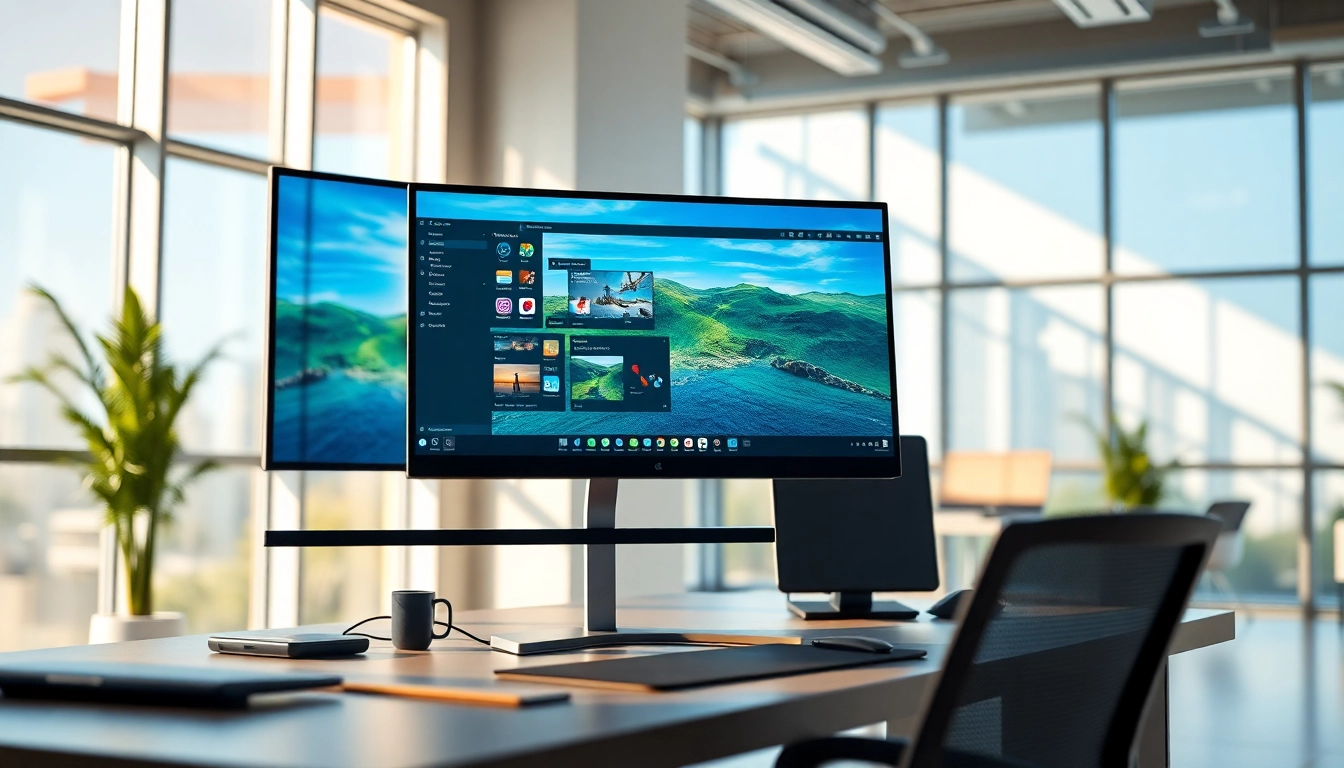
A virtual desktop is an innovative computing environment that allows users to access their desktops remotely from any device connected to the internet. Essentially, it replicates a conventional desktop interface but processes all data on a server, enabling greater flexibility and mobility for users. In simpler terms, a virtual desktop is a digital version of a workstation, allowing for seamless access to applications, files, and resources from different physical locations.
This technology can be utilized across various platforms, including personal computers, laptops, tablets, and smartphones, creating a bridge between users and their computing resources. The popularity of virtual desks stems not only from the need for mobility but also from the increased demand for remote work capabilities in today’s global landscape.
Types of virtual desktops
There are primarily two types of virtual desktops: Persistent and Non-Persistent. Understanding these can help businesses and individuals choose the right model suited to their needs.
- Persistent Virtual Desktops: These desktops maintain user settings, applications, and files between sessions. Users have a consistent experience each time they log in, making this option particularly useful for roles that require personalized settings and repeated access to specific applications and files.
- Non-Persistent Virtual Desktops: In contrast, these environments do not retain user preferences after a session ends. Each time a user logs in, they receive a fresh desktop environment. This model is often easier to manage and is ideal for tasks where personalization is less critical, such as guest workstation access.
How virtual desktop differs from traditional setups
The development of virtual desktop technology marks a significant shift from traditional computing setups. Below are key points highlighting the differences:
- Location Independence: Traditional setups require users to be on-site, while virtual desktops allow access from anywhere, fostering remote work flexibility.
- Centralized Management: Virtual desktops enable IT teams to manage software updates and security measures centrally, simplifying operational efficiency and alignment with compliance requirements.
- Security and Backup: Data is stored on remote servers, reducing the risk of data loss due to hardware failures and enhancing security through controlled access measures.
Benefits of Using Virtual Desktop
Enhanced productivity and multitasking
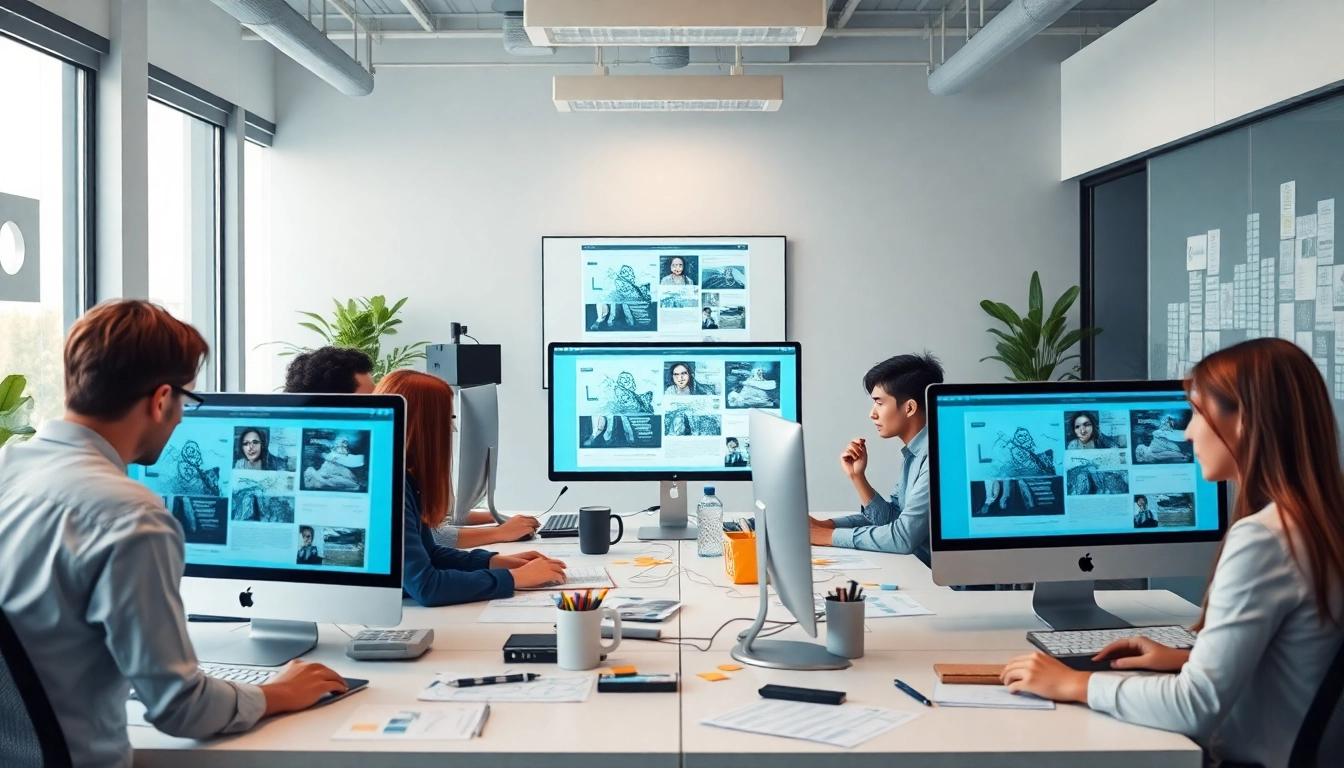
One of the most significant advantages of adopting a virtual desktop is its impact on productivity. With the capability to access work from multiple devices, employees can work efficiently regardless of their location. The ability to run several applications simultaneously improves multitasking, allowing users to switch between tasks seamlessly.
Moreover, virtual desktops often come equipped with advanced productivity tools, enhancing cooperation among team members through collaborative software programs that run smoothly within this framework. Additionally, cloud storage solutions integrated with these environments provide easy access to documents and files, facilitating workplace collaboration.
Cost savings and resource optimization
Implementing a virtual desktop solution can lead to significant cost reductions for businesses. By migrating to cloud infrastructure, organizations can save on hardware expenses, minimizing the need for physical servers and cutting down on maintenance costs associated with traditional computing setups.
Virtual desktops also allow for optimized resource allocation, enabling companies to pay only for the services they use. This model is particularly beneficial for businesses with fluctuating demands, as resource scalability allows for more efficient budgeting and financial management.
Improved security features of a virtual desktop
Security is a paramount concern for any organization, especially in an era marked by increasing cyber threats. Virtual desktops enhance data security through various means:
- Data Centralization: By storing sensitive information and applications in a remote server environment, organizations reduce the risk of data breaches that can occur with traditional desktops.
- Access Control: Virtual desktop environments allow organizations to implement strict access controls, enabling administrators to determine who can access certain files or applications.
- Regular Updates and Maintenance: IT teams can deploy security updates instantly across all virtual desktops, ensuring the latest protection measures are in place without necessitating individual updates on multiple physical machines.
Setting Up Your Virtual Desktop
Hardware and software requirements
Before setting up a virtual desktop, it is essential to determine the necessary hardware and software prerequisites:
- Client Device: Users must have a compatible device, such as a laptop, desktop, or tablet with a stable internet connection. Basic specifications typically suffice, although higher-performance systems may be required for graphic-intensive tasks.
- Virtualization Software: Organizations need to choose suitable virtualization software, which could be cloud-based or installed locally. This software manages user connections and the delivery of the virtual desktop environment.
- Server Infrastructure: Companies should consider investing in robust server hardware or utilize third-party cloud platforms that offer reliability and scalability to support the virtual desktop operations.
Step-by-step setup process
Setting up a virtual desktop involves several key steps:
- Select a Virtualization Solution: Choose a provider that meets your organizational needs.
- Install Virtualization Software: Follow the vendor instructions to install and configure the necessary software on the server or cloud infrastructure.
- Configure User Profiles: Set up personalized user profiles based on the organization’s needs, aligning resource access with roles and responsibilities.
- Test the Environment: Before a full rollout, conduct testing to ensure that all systems are functional, user access is secure, and applications run smoothly.
- Train Users: Provide training sessions to familiarize users with the new system, addressing any concerns and optimizing user adoption.
Troubleshooting common installation issues
During the installation process, users may encounter several common challenges:
- Connectivity Problems: Ensure that the internet connection is stable and meets the required speed for seamless access to the virtual desktop.
- Configuration Errors: Review the installation settings to guarantee that user profiles and access controls are set correctly.
- Software Compatibility: Confirm that all installed applications run well on the virtual desktop environment to avoid performance issues.
Best Practices for Virtual Desktop Users
Optimizing performance on your virtual desktop
To gain the most from a virtual desktop, users should adopt best practices that optimize performance:
- Regularly Check System Updates: Keeping the virtualization software and all applications up to date ensures security and functionality.
- Limit Resource-Intensive Applications: Be cautious when running applications that require extensive resources, as they can impact system performance.
- Utilize Cloud Storage: Storing documents and files in the cloud can significantly improve access speeds and ease of sharing among team members.
Maintaining user-friendly interfaces
Creating a user-friendly experience is essential for ensuring user adoption and satisfaction:
- Simplifying Navigation: Customize the desktop interface to make frequently used applications easy to access.
- Organizing Workspaces: Maintain a tidy workspace by categorizing files and applications in a logical manner.
- Feedback Mechanism: Implement a feedback system to gather user suggestions on improving the interface and overall experience.
Regular updates and best security practices
Maintaining the security and integrity of a virtual desktop environment is crucial:
- Implement Strong Password Policies: Encourage users to create complex passwords and change them regularly.
- Monitor Network Activity: Utilize monitoring tools to keep track of network activity and detect any suspicious behavior.
- Backup Regularly: Establish a schedule for regular backups to ensure that data is recoverable in case of loss.
Future Trends in Virtual Desktop Technology
Emerging technologies enhancing virtual desktop
As technology evolves, so does the landscape of virtual desktops. Emerging technologies such as Artificial Intelligence (AI) and Machine Learning (ML) are increasingly being integrated into virtual desktops. These technologies can provide automated monitoring, predictive analytics for resource allocation, and enhanced security measures that adapt to user behavior. Furthermore, advancements in cloud computing will bolster the scalability and accessibility of virtual desktop environments for businesses of all sizes.
Predictions for user experience evolution
Expectations surrounding user experiences in virtual desktops will continue to rise. Future developments could introduce more intuitive interfaces utilizing augmented reality (AR) and virtual reality (VR) to create immersive environments. Users may anticipate increased personalization options and adaptive user experiences, where the desktop environment evolves based on individual usage patterns.
Impacts on remote work and collaboration
The ongoing trend towards remote work is likely to accelerate the adoption of virtual desktops. Businesses will be pushed to develop more collaborative tools that integrate seamlessly with these environments. As remote teams seek effective ways to work together, features such as real-time collaboration features, virtual meetings, and integrated communication platforms will become standard in virtual desktop solutions.